
Description
Updating HubSpot websites with images from Kontainer
The Kontainer HubSpot plugin connects your HubSpot account with your Kontainer digital asset management (DAM) system. It allows marketers, editors, and content teams to insert images directly from Kontainer into HubSpot website pages and landing pages—without the need to download files, switch tools, or re-upload assets.
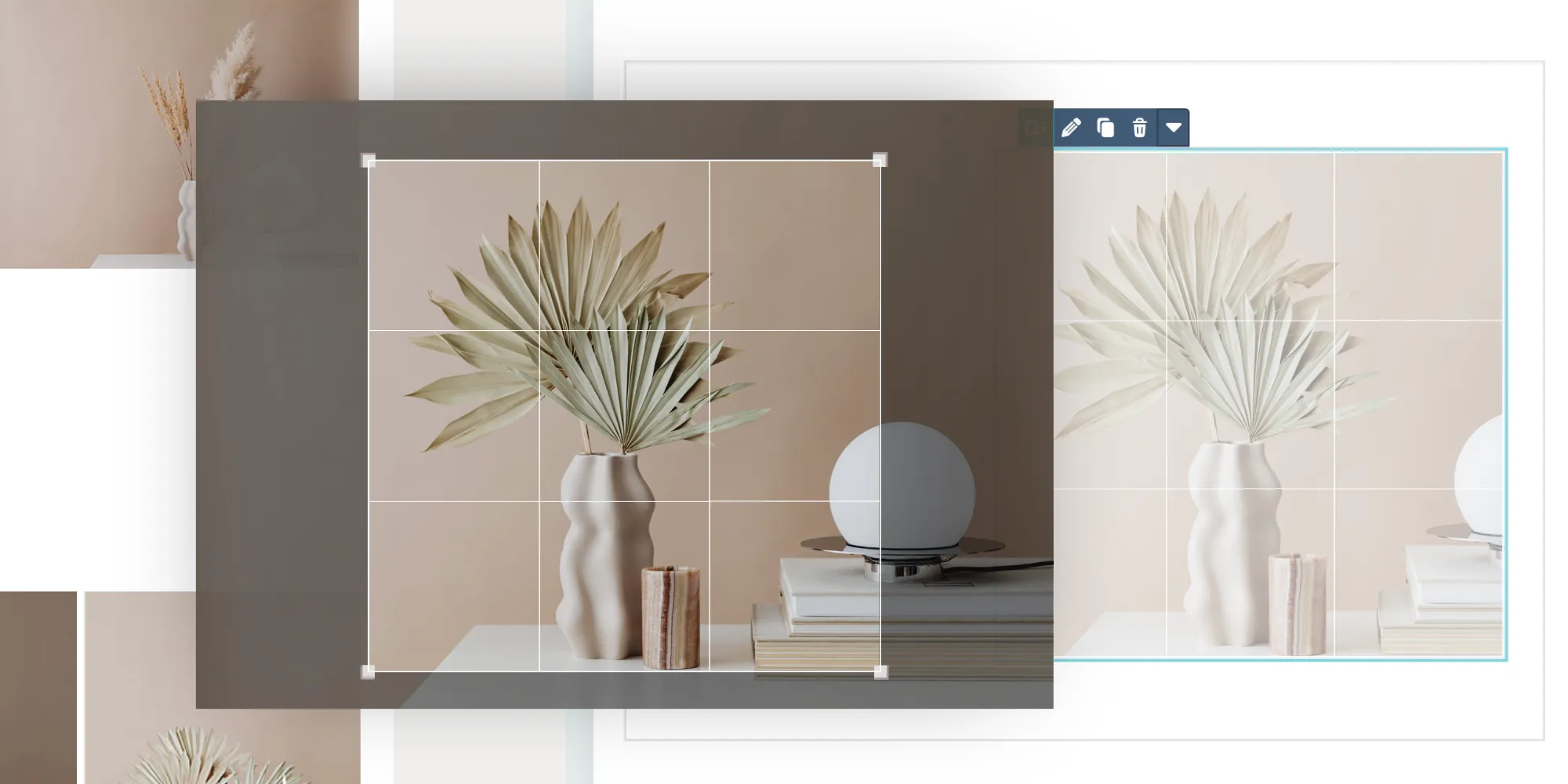
Before inserting an image, users can crop, resize, and format it using preset download templates defined in Kontainer. This ensures images are always optimized for web use and match your design and technical requirements across all HubSpot pages.
Benefits
Benefits of the HubSpot plugin
✔ Insert images directly into HubSpot websites and landing pages
✔ Access your Kontainer image library inside HubSpot
✔ Users with limited access in Kontainer will only see the assets and data open to them
✔ Crop, resize, and format images before insertion
✔ Use preset download templates for consistent image output
✔ Reduce manual downloads, uploads, and duplicate files
✔ Ensure brand-approved visuals are used across all pages
✔ Save time and streamline content production workflows
Features
How the HubSpot plugin works
Once the plugin is set up, this is how it works:
- Add an image box in the HubSpot editor
In the HubSpot editor, you will have the option to add a Kontainer module to a content box. - Access pop-up Kontainer library
Click on the module button “Choose image from Kontainer” to open the pop-up library (active Kontainer login required) - Search & select images
Browse your DAM library or search by tags, name, or metadata. - Crop & format as you go
Choose or preview preset download templates, crop as needed, and get an image ready for web use. - Insert into HubSpot
Paste the optimized image directly into the HubSpot page editor; no separate download is required. - Review and update
Once an image has been inserted, it can be reviewed in context, published and easily exchanged within the HubSpot editor.
Why?
Why Kontainer + HubSpot?
If you frequently build and update web content, searching for, preparing, and formatting images can slow you down. The Kontainer HubSpot integration brings your approved visuals into the HubSpot editor, making it easy to insert images that fit your design and technical requirements—without the need to export, resize, or manually re-upload files.
With Kontainer, marketers and web editors spend less time switching tools and more time publishing high-quality, brand-compliant content.
Use Cases
Common use cases
- Marketing teams building landing pages with correctly sized hero images
- Content editors inserting blog images optimized for performance
- Agencies maintaining visual consistency across multiple HubSpot sites
- Teams with access to only approved and up-to-date images in Kontainer
- Organizations standardizing image formats with preset templates
Support
Links and Support
Install the Kontainer HubSpot plugin to simplify image management and speed up your content workflows.
Access the helpdesk install guide here.
Need help setting it up? Our support team is ready to assist.
FAQ
What does the Kontainer HubSpot integration do?
It allows you to insert images from Kontainer directly into HubSpot website and landing pages, including cropping and formatting images before insertion.
Can I use preset image sizes and formats?
Yes. You can apply predefined download templates from Kontainer to ensure images match your required dimensions and formats.
Do I need to download images to my computer first?
No. Images are selected, formatted, and inserted directly from Kontainer into HubSpot—no manual downloads required.
Which HubSpot editors are supported?
The integration works in the HubSpot website and landing page editors.
Does this help with image performance and load times?
Yes. Formatting images before insertion helps reduce file sizes and ensures optimized image delivery for faster page loads.